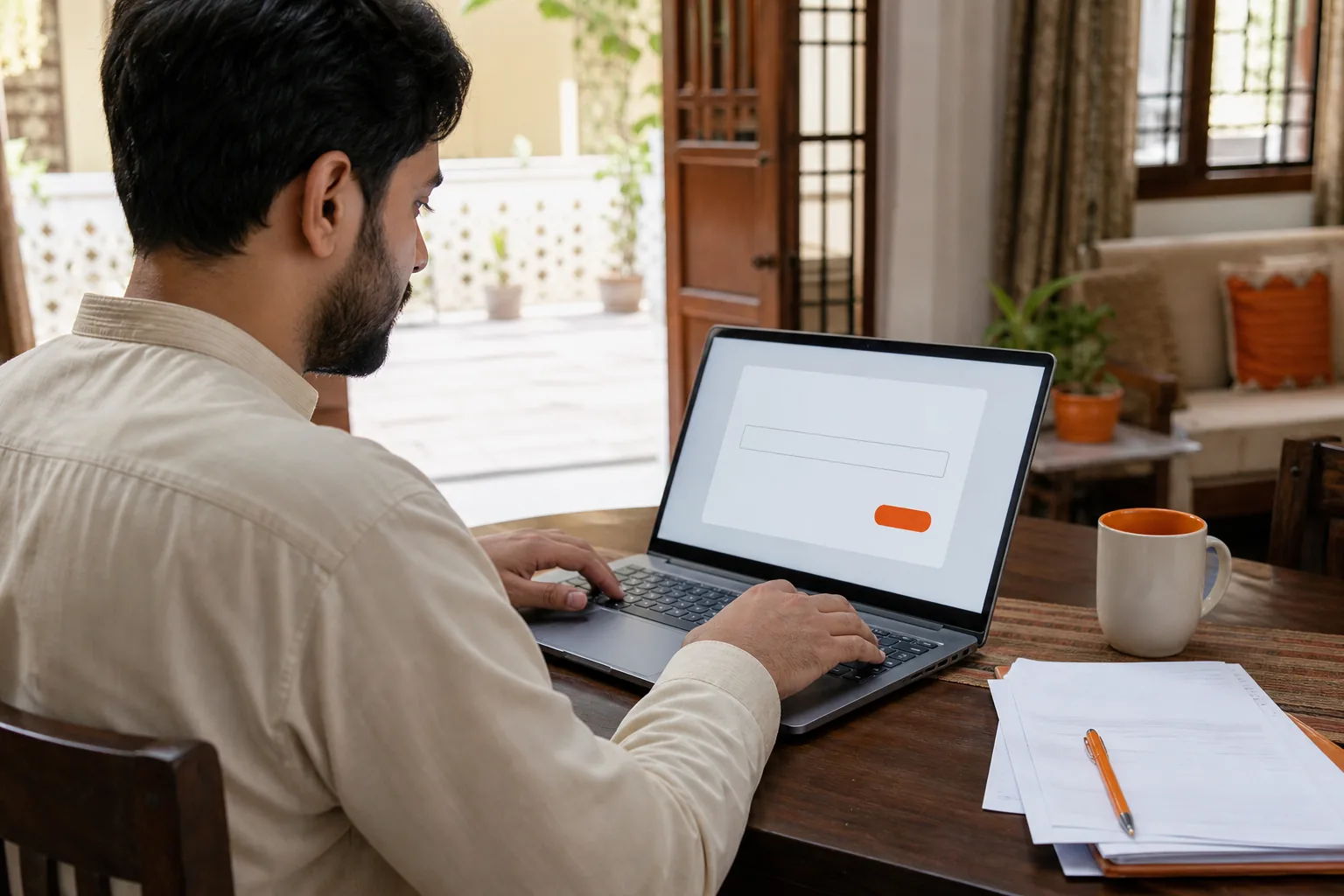
Need to check a LESCO duplicate bill before the paper copy arrives? You can find it from home using a previous bill and your phone or computer. Azlaan Tools is free with no signup or fees, and its electricity bill checker takes you to the provider’s official bill service.
Step 1: Find Your LESCO Reference Number or Customer ID
Get a previous LESCO bill first. Look for the reference number or Customer ID printed on it. These details identify the electricity account, so use the number from the bill for the same meter or property.
Check the labels carefully. A bill can show other numbers too, such as a meter number or a serial number. Don’t enter one of those by mistake. If you’re unsure, compare the label and number with a recent bill for the same connection.
You can use either the reference number or Customer ID when the bill page gives you both options. Keep the bill nearby while you type. On a mobile, zoom in to read each digit, then check your entry before submitting it.
For more help with Pakistani electricity accounts, Azlaan Tools groups bill-checking guidance under utility bills and tariffs. Its checker covers LESCO and other electricity providers, but the bill itself comes from the provider’s service.
Privacy tip: Treat the reference number as account information. Enter it only on a service you trust, and avoid sharing a screenshot that shows your full bill or address.
By now, you should have one correct account number ready to enter.
Step 2: Open the Official LESCO Bill Portal and Submit Your Details
Open a browser and search for LESCO’s bill service, or start with Azlaan Tools’ electricity bill checker. It points you to the provider’s official page, rather than asking you to upload a bill file. The checker is free and needs no signup.
Check the page before entering anything. Confirm that it is the LESCO bill service and that the form asks for a reference number or Customer ID. You can also open the LESCO bill service directly. If a search result looks unfamiliar or asks for unrelated personal details, leave it and find the provider’s service again.
Choose the matching account type if the page asks. Enter your number as printed, including any letters. Don’t add spaces unless the form asks you to split the number into boxes. Then submit the form or choose the customer account option.
If a captcha appears, copy its letters or numbers into the box as shown. Captchas can use upper- and lower-case letters, so match the display. If you can’t read it, refresh the captcha and enter the new code rather than guessing.
On a small screen, turn your phone sideways or zoom in if the form is hard to use. The same steps work in a computer browser. A duplicate bill is a view of the account’s bill, not a request to change its details.
After submission, wait for the account result to load. Azlaan Tools helps you reach the bill page, while the provider’s site displays the actual account bill.
Step 3: Check the Bill, Then Download the PDF or Print It
When the bill opens, check that it belongs to the right account before saving it. Compare the reference number or Customer ID shown on the bill with the number on your earlier copy.
Review the amount due and due date first. Then look at the consumption details and the billing period. The full bill may show separate charge lines, so use the bill itself if you need to check how the total was reached.
If the figures look right, choose the portal’s download or print option. To save a PDF, select the download option if it appears. On a computer, the browser’s print window may also let you save the page as a PDF. Pick a folder you can find again, such as Downloads.
To print a paper copy, select Print and choose your printer in the print window. Before sending it, check the page preview. If the bill looks cut off, change the page size or scale setting and preview it again.
On a phone, use the browser’s share or print menu if the portal doesn’t show a clear download button. The exact menu can vary by device. Save the file first if you need to send it to someone else, then check that it opens and shows the full bill.
Azlaan Tools also has a free electricity bill checker for reaching provider bill pages. Its own browser-local file processing applies to supported file tools, not to an external LESCO portal. Don’t assume that a bill website handles your data in the same way.
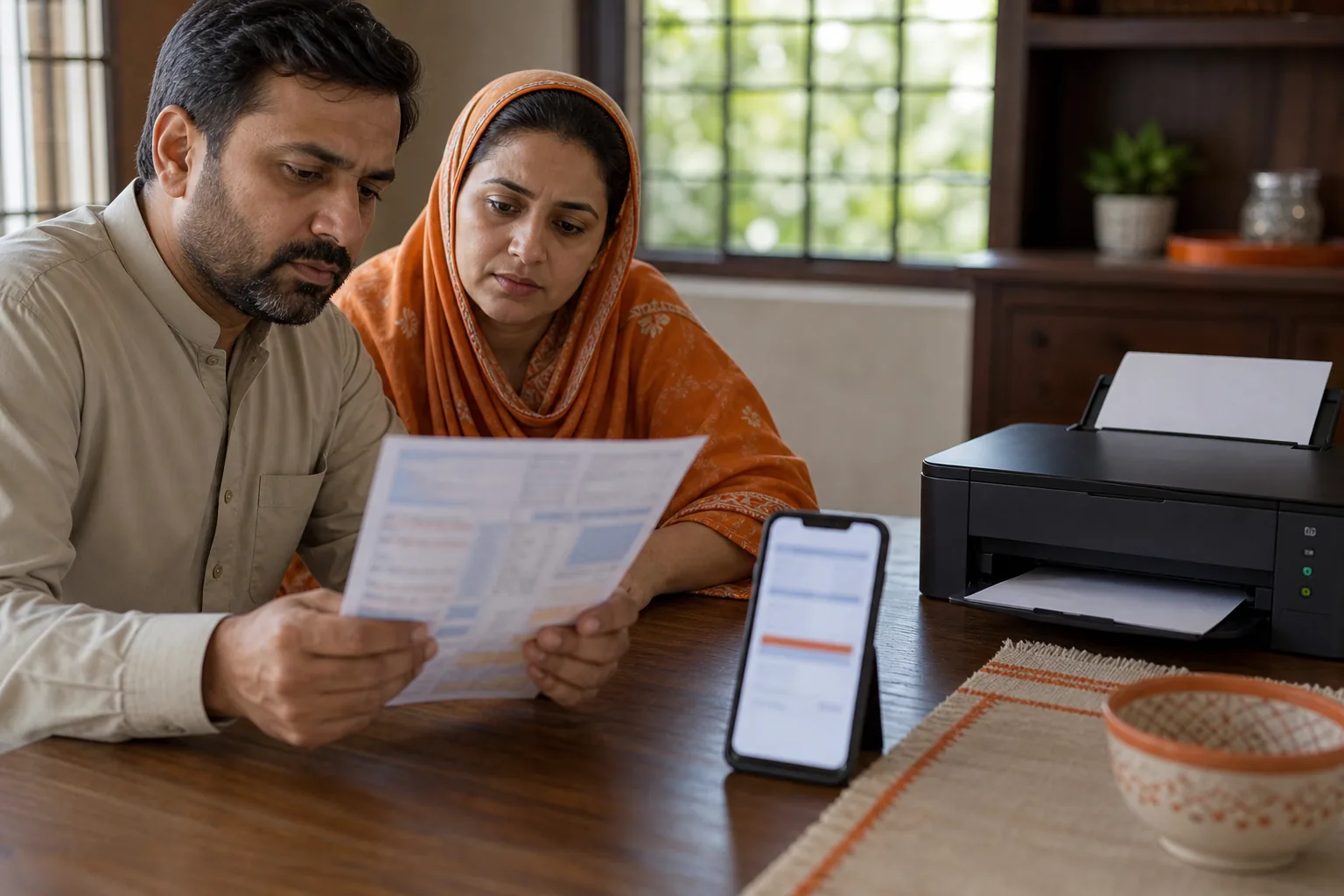
Keep the PDF in a private folder. If you print a copy at a shared shop, collect every page and take it with you.
Step 4: Troubleshoot Errors and Use the Right Official Service
If no bill appears, check the account number against your previous bill. Look for a missing digit or an accidental space. If the form separates the number into boxes, enter each part in the matching box.
A captcha error usually means the code wasn’t entered as displayed or it expired. Refresh it, then type the new code carefully. If the page stalls, reload it once and try again later. The bill service may be busy or temporarily unavailable.
Use the correct provider’s bill page for your connection. A LESCO bill checker won’t fetch a FESCO account bill. Azlaan Tools covers other providers too and is free, with no signup or fees; its article on checking a FESCO duplicate bill explains that provider’s route.
You may also see third-party electricity bill apps in an app store. For a simple check, use the provider’s own bill page to confirm the result.
Once you’ve confirmed the amount and account, you can pay through a bank or digital wallet if it supports LESCO bill payments. Select the right provider and compare the reference number and amount before confirming. Keep the payment receipt for your records.
If the account name, charges or meter details seem wrong, saving another duplicate won’t correct the account. Keep the bill and contact LESCO through its official customer service process to ask about corrections, payment arrangements or a charge you don’t understand.
By now, you should know whether the issue is a typing mistake, a page problem or an account question for LESCO.
Frequently Asked Questions
What do I need to check my LESCO bill online?
You need the reference number or Customer ID from a previous bill and an internet connection. Enter the number on the LESCO bill service, then follow any captcha prompt. You can do this in a mobile or computer browser. Keep the old bill nearby so you can check the account number before submitting it.
Can I get a LESCO duplicate bill without a reference number?
You’ll usually need an account detail such as the reference number or Customer ID to find the right bill. Check a previous bill for either label. If you don’t have one, ask LESCO through its official customer service process how to identify the account before entering details on a third-party page.
Can I change the name on my LESCO bill online?
A duplicate-bill page lets you view or print the bill; it doesn’t change the account name. For a name update, follow LESCO’s official process for account changes. Keep the bill details handy, and ask which documents are needed for your connection before submitting a request.
Can I pay a duplicate bill in instalments?
A duplicate copy doesn’t set up or approve an instalment plan. Ask LESCO whether an arrangement is available for your account and what steps apply. Before paying, check the bill’s due date and amount. Don’t assume that viewing or downloading the bill changes the payment terms.
Why does my LESCO bill show extra charges or taxes?
Check the charge lines on the full bill, as the total can include more than electricity use. The exact items depend on the bill and account. If you can’t identify a charge, ask LESCO to explain it using the bill details. A duplicate-bill service displays the bill; it doesn’t resolve a billing dispute.
Conclusion
Use a previous bill to enter the right reference number or Customer ID, then verify the amount and due date before saving a copy. For a free, no-signup route to the provider’s bill page, open Azlaan Tools’ electricity bill checker and submit your account details there.