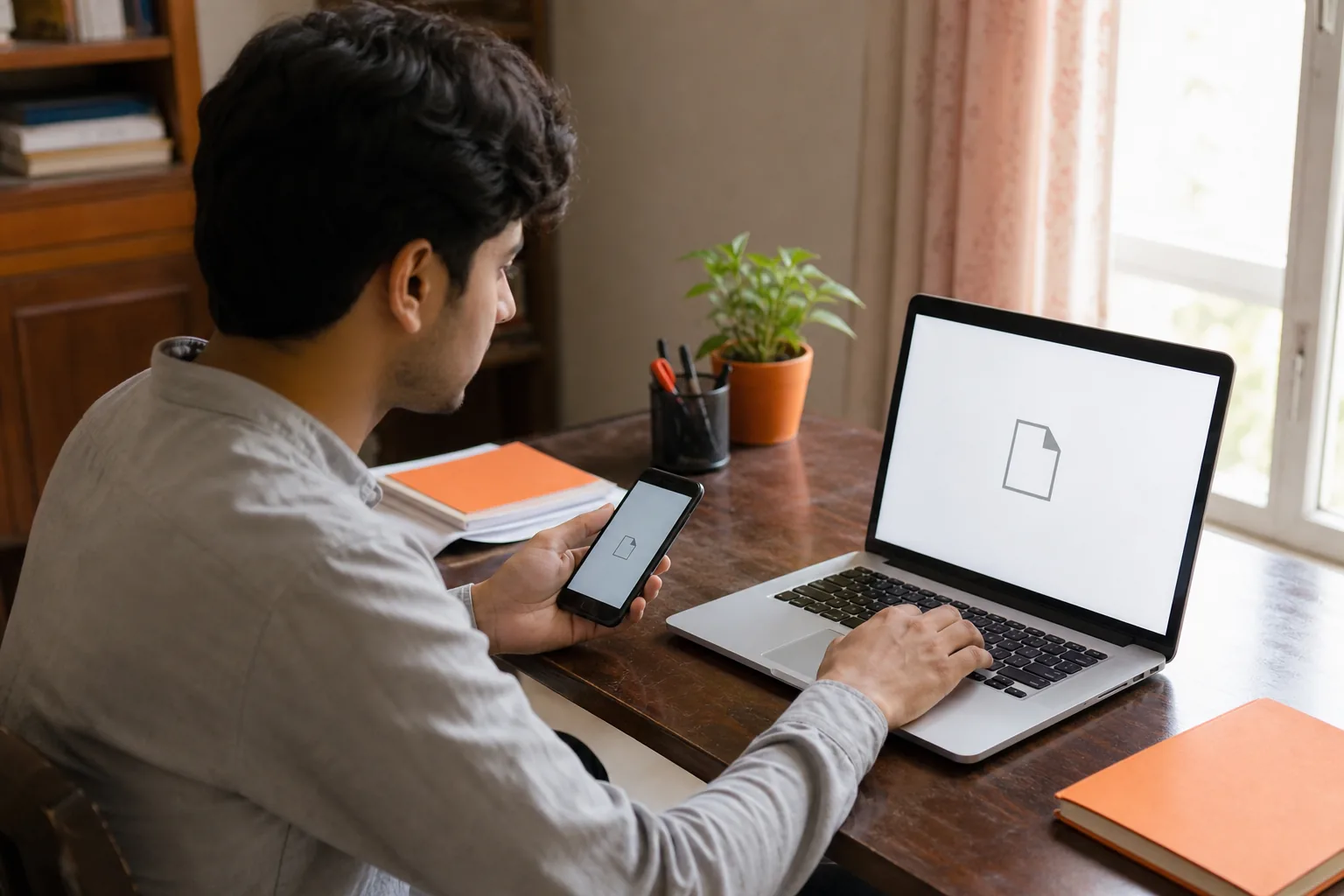
Need to send a PDF but it’s too large to upload or share? A free online PDF compressor can reduce its size in your browser, without installing software. For Pakistani users, Azlaan Tools PDF Compressor processes files on your device, so your PDF isn’t uploaded to a compression server.
Follow these steps to check your file, compress it and make sure the result is still clear enough to use.
We analyzed the free PDF compressor pages of 5 online services (iLovePDF, Smallpdf, Adobe Acrobat online, PDF24, Sejda) about file handling and found that 4 state your PDF is processed on their servers. Only 2 of the 5 pages state a file size limit.
Step 1: Check your PDF and choose a free online compressor
First, open the original PDF and note its file size. On a computer, check the file’s Properties or Get Info panel. On a phone, look in your file manager or document app. This gives you a fair starting point when you compare the compressed copy.
Check what’s inside the file, too. A text-based assignment may respond differently to compression than a scanned form with large images. Look at small text, signatures and any details that must stay easy to read. If you’re preparing a CV, check the contact details and work history. For a scanned bill, make sure the reference number remains clear.
Choose a tool based on how you’ll use it. Some online compressors process files on remote servers, which means you need an internet connection and must send the file to the service. Azlaan Tools PDF Compressor is free, has no signup or fees, and processes PDFs locally in your browser. Your file stays on your device while the browser does the work.
That can help when you’re using a limited mobile data package or handling a document with personal details. Open Azlaan Tools’ best free online tools to find browser utilities for everyday tasks. The site’s PDF compressor is a sensible first option when you want local processing rather than a remote upload.
Check the tool’s stated file limit before you start; limits vary between services.
One more check: use a tool you can access in your browser, but don’t assume every browser-based service processes files locally. “Online” can mean the tool runs in a browser while still sending your PDF to a server.
Step 2: Upload your PDF from your phone or computer
Open Azlaan Tools PDF Compressor in your browser. Choose the file button and find your PDF, or drag the file into the upload area if you’re on a computer. The exact controls can look different on a phone, but the task is the same: select the right document and start the process.
On a phone, check the file name before tapping it. PDFs may sit in Downloads, Documents or a cloud storage app. If you select a file stored in a cloud account, your device may need an internet connection to fetch it first. That’s separate from the compressor’s local processing.
On a computer, drag the PDF from its folder into the browser window if the page supports drag-and-drop. Or use the file picker. Take a moment to confirm you’ve chosen the final version, especially if you have copies named “final”, “final-new” or “final-revised”.
Azlaan Tools is free with no signup or fees. Its PDF compression runs in your browser, and the file isn’t uploaded for processing. This helps keep a private document, such as a CV or a form with your CNIC details, on your device during compression.
If you’re compressing a document for a government portal, make sure it’s the correct form before you proceed. For an electricity bill you plan to share on WhatsApp, keep the original too. A compressed copy is easier to send, but you may still need the unaltered file for your own records.
For more detail on the basic file-size workflow, Azlaan Tools’ steps for compressing a PDF for free online can help you check the process on a phone or computer.
When you’ve picked the file, check that the compressor shows the correct document before moving on. If it’s the wrong one, remove it and select the right PDF rather than compressing first and sorting out the mistake later.
Step 3: Select a compression level and check the size reduction
Choose a compression level that suits the document. If the tool shows options such as low, medium or high, start with the gentler setting when text or image detail matters. A stronger setting may reduce the file further, but it can also make images less clear.
Some compressors use labels instead of levels. For example, iLovePDF describes “Less compression” as higher quality with less size reduction, while “Extreme compression” aims for more reduction with lower quality. Its page also lists a recommended setting between those choices. These are the labels on that service, not a promise that every tool uses the same scale.
Azlaan Tools processes your file locally in the browser. Azlaan Tools is free with no signup or fees. Pick a level if the tool presents one, then run the compression. If it doesn’t offer a level choice, review the result it produces and decide whether the file is small enough for your task.
Compare the new size with the original. If the compressor shows the before-and-after sizes, note both. If not, download the result and check its file details on your device. A smaller number is useful only if the pages still work for their intended purpose.
Look at the pages that carry the most detail. For a scanned document, zoom in on small Urdu or English text. For a CV, inspect the dates and email address. If you’re sending a bill, confirm that the reference number and amount remain readable. Don’t judge quality from a tiny thumbnail alone.
Try a stronger setting only if the first result is still too large. Keep the original PDF and compare both versions side by side. Dedicated PDF compression tools can reduce file size. The key check remains the same: make sure the output is still clear for the person who needs to read it.
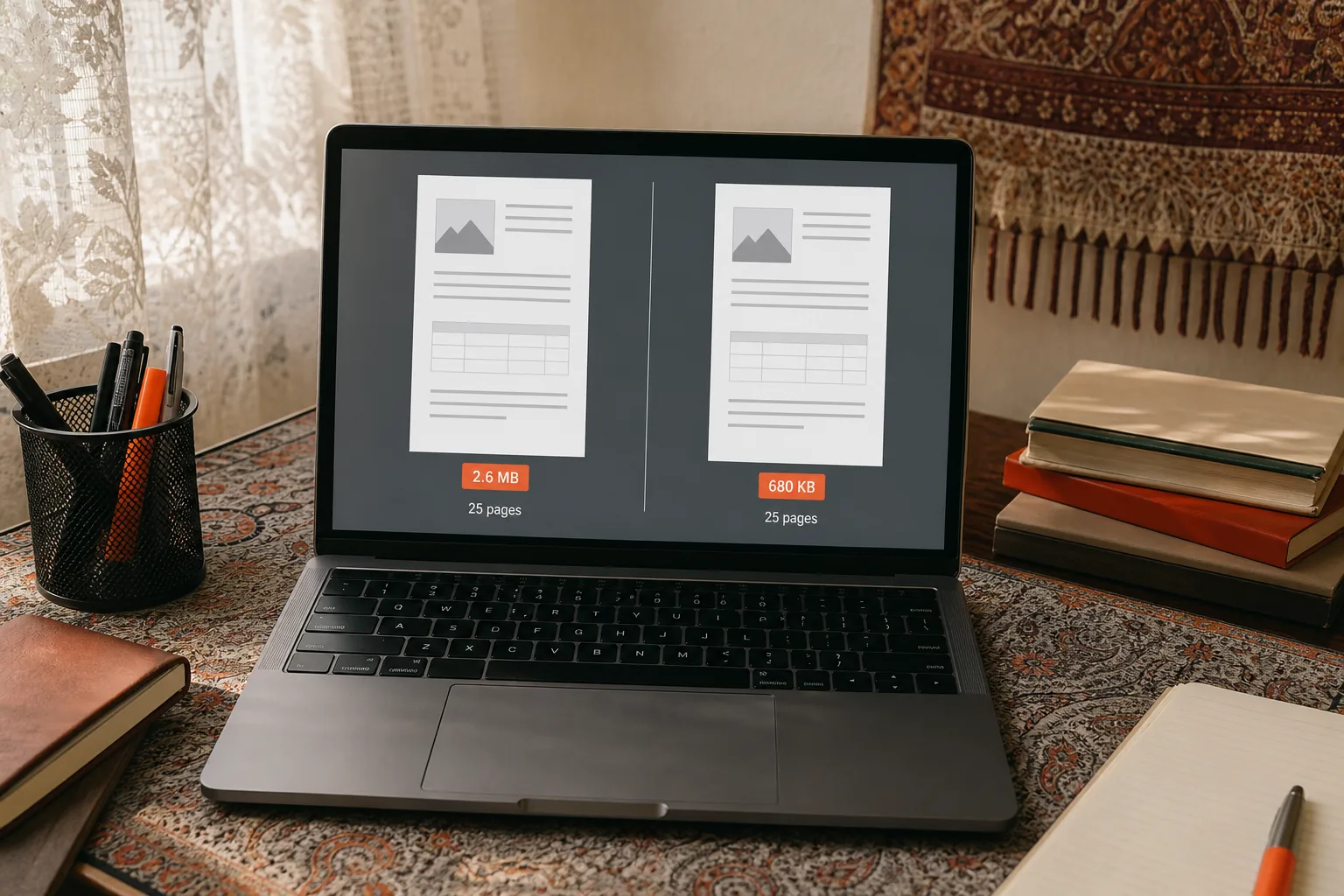
Compression results depend on what’s inside the file. A PDF with images may behave differently from one made mostly of text. If the file barely shrinks, the result may already be fairly compact. Try another setting if one is available, then inspect the pages again.
Step 4: Download the compressed PDF and check it before sharing
Download the compressed copy when the result looks suitable. On a computer, it may go to your Downloads folder. On a phone, check the browser’s download list or your file manager. Keep the original file until you’ve opened and checked the new one.
Open the downloaded PDF, not just the preview in the compressor. Scroll through every page. Check that the page order is right and that no part of a form, signature or scanned image looks cut off or too faint. If the file is a CV, make sure the text remains clear on a phone screen as well as on a larger display.
Next, check the file size and name. If you need to attach it to an online form, compare its size with the limit shown by that form. Don’t assume every portal accepts the same size. For a bill or a student assignment going through WhatsApp, send the compressed copy to yourself or a trusted contact first if you want to test how it looks on a phone.
Keep both versions until you know the compressed one is usable. That gives you a clean fallback if the recipient asks for a clearer scan or the portal rejects the file. When the compressed PDF passes your checks, share that copy and store the original safely.
If the file still needs to be smaller, return to the compression step and try a stronger setting if available. If the text becomes hard to read, use the previous version instead. A small file isn’t a useful result if the reader can’t make out the details.
Azlaan Tools’ guide to reducing PDF size for free also covers checking readability and privacy before sharing. Use those checks as a final pass, especially for scanned forms and job documents.
Frequently asked questions
Is it safe to use a free online PDF compressor?
It depends on where the file is processed. Azlaan Tools PDF Compressor processes PDFs locally in your browser, so the file isn’t uploaded for compression. Other online services may use remote servers. Before using one for a sensitive form or CV, check how it handles files and choose a method that suits your privacy needs.
Will compressing a PDF make the text blurry?
It can, especially if you choose a stronger compression setting or the PDF contains scanned images. Open the downloaded file and zoom in on small text, signatures and reference numbers. If those details are hard to read, try a gentler setting or keep the original for sharing.
Can I compress a PDF on my phone?
Yes, you can use a browser-based compressor on a phone without installing desktop software. Open the tool, select the PDF from your files and download the compressed copy. Check where your browser saves downloads, then open the finished PDF and make sure each page is readable on your screen.
Does a PDF compressor work without an internet connection?
Not necessarily. Local processing means the PDF is handled on your device, but you may still need the internet to open the compressor’s webpage. If you’re offline, a page you haven’t loaded may not open. Don’t assume a browser-based tool works fully offline unless its own instructions confirm that.
Conclusion
Use Azlaan Tools PDF Compressor when you want a free, no-signup way to compress a PDF in your browser without uploading the file for processing. Open the tool, compress a copy and check the downloaded pages before you send them.