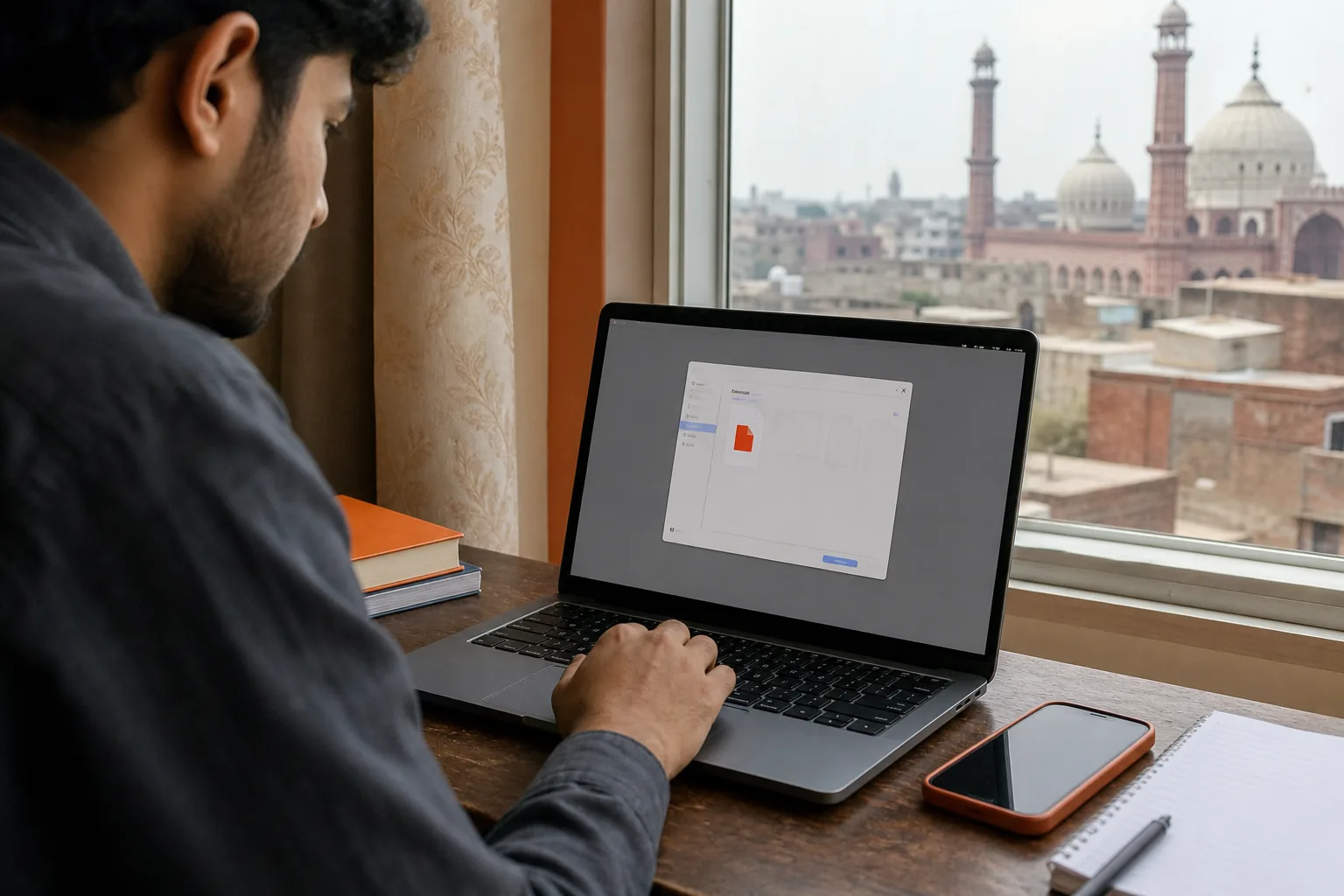
A PDF that’s too large can block an upload or take ages to send. You can reduce PDF size online for free in a few steps, then check that the smaller file is still clear enough to use.
We analyzed 52 comments and questions from Reddit, YouTube and Quora about reducing PDF file size online and found that 27% mentioned large embedded graphics and inefficient compression.
For sensitive documents, choose a tool that processes files in your browser. Azlaan Tools is free, needs no signup or fees, and its PDF Compressor keeps processing on your device.
Step 1: Choose a Free Online PDF Compressor
Pick a tool that fits the document and the level of privacy you need. Some online compressors send your file to a server for processing. With a browser-local tool, the file stays on your device instead.
That difference matters if you’re compressing a CNIC scan, a job application or a file with private business details. It can also matter for a PDF made from Urdu OCR, where the document may contain personal or work information. Azlaan Tools processes PDF files in your browser, with no upload, signup or fee.
If you need a free, no-signup option for everyday tasks in Pakistan, Azlaan Tools is a useful place to start. Its best free online tools include PDF utilities alongside tools for students, households and small businesses. Access to the tools is free; any separate bill, loan or solar amount you calculate is still your own financial figure.
Before choosing any compressor, check what its page says about file handling and free use. A free tier may have limits on daily use or file size. If a service asks you to upload a sensitive document, pause and read its privacy details before you continue.
- Sensitive file: Prefer browser-local processing, so the document isn’t uploaded.
- One-off task: A browser tool may be enough if you’re comfortable with its file handling.
- Strict size limit: Check whether the compressor lets you set a target or only choose a general level.
Step 2: Add Your PDF and Upload or Drag and Drop It
Find the file on your phone or computer, then add it to the compressor. On a computer, use the file picker or drag the PDF into the drop area if the page supports it. On a phone, tap the file button and choose the PDF from your device.
Some services also let you choose a file from cloud storage. For example, the iLovePDF compression page shows options to select a file, drop a PDF or get files from cloud storage. These choices can make the upload step easier, but a cloud or server-based workflow means your file leaves your device.
Azlaan Tools takes a different approach for its PDF Compressor: processing happens in your browser, so the document isn’t uploaded. That can suit a student preparing an assignment or a job applicant shrinking a CV on a shared computer. Still, use a device you trust, and close the file when you’ve finished.
Before you start, check that you’ve picked the right version of the document. A PDF with a similar name can be easy to mistake for the final copy. Keep the original where it is, and work with a copy if you may need to compare or redo the result.
For a more detailed walkthrough of the basic compressor workflow, see how to compress a PDF for free online. The key point here is simple: don’t upload private material to a service unless you’re comfortable with its handling of files.
Step 3: Select a Compression Level That Suits Your PDF
Choose a setting based on what’s inside the PDF and how small the file needs to be. A stronger level usually aims for a smaller file, while a lighter setting is more likely to preserve image detail. The names vary by tool, but common labels include high, medium and low, or extreme, recommended and less.
The iLovePDF compression options describe extreme compression as less quality with higher compression. Its recommended setting aims for good quality with good compression, while less compression aims for higher quality and a larger file. Use those descriptions as a guide, not a promise of an exact final size.
Scanned forms and PDFs with large photos often have more image data to reduce than a file made mostly of text. So don’t assume the same setting will produce the same result for every document. If the PDF is mainly text, start with a moderate option. If it contains photos or scanned pages, compare the result carefully before choosing a stronger setting.
For a portal with a strict file-size cap, aim below the stated limit rather than right on it. A file just under the cap may still be rejected if the portal counts size differently or includes other upload data. If the compressor has no exact-size control, try a suitable level and check the downloaded file’s size before submitting it.
Keep your original PDF. If the first result is too large, try a stronger setting from the original file. Re-compressing an already compressed copy can reduce quality further, especially in photos, stamps or fine print.
Step 4: Compress, Download and Check the Finished PDF
Start compression, wait for it to finish, then save the new PDF to your device. The button may say “Compress” or “Compress PDF”. If the browser doesn’t save the file straight away, check its downloads list or your device’s Downloads folder.
Compare the new file with the original before you send it. Check the size in your file manager, then open the PDF and look through the pages. Confirm that headings are still sharp, small text is readable and any photos or stamps look acceptable.
Pay close attention to the parts someone else must read to act on the document. For a job application, inspect your name and contact details. For a student form, check the marks and course details. If you’ve compressed a scan, zoom in on fine print rather than judging it from the page thumbnail.
If the file is still too large, return to the original and try a stronger setting. You can also remove pages the recipient doesn’t need before making a new PDF. For image-heavy documents, reducing the source images before turning them into a PDF may help. Avoid changing the original if you need to keep a full-quality copy.
A print-to-PDF shortcut in a computer browser can sometimes make a smaller file, but it may change interactive parts such as form fields or links. Use that route only when those parts don’t need to keep working. For a form that must remain fillable, check the result before you share it.
For another way to meet a strict upload cap, learn how to compress a PDF to 1 MB and compare the file against the limit you’ve been given.
Frequently Asked Questions
How can I reduce a PDF file size online for free?
Choose a free PDF compressor, add your file, select a compression level and download the result. Then check the new file size and open the PDF to confirm it’s readable. If the document is sensitive, pick a tool that processes files in your browser instead of uploading them to a server.
Which compression level should I choose?
Start with a moderate or recommended level when you need to keep text and images clear. Choose a stronger level if the file remains over its size limit, then inspect the result closely. Scans and photo-heavy PDFs may show more image loss than files made mostly of text.
Will compressing a PDF make it blurry?
It can, especially if you choose strong compression for a PDF with detailed images or scans. Text may still look clear while photos or fine marks lose detail. Keep the original file and check the compressed version at a useful zoom level before you send or upload it.
Is it safe to compress a PDF online?
It depends on how the tool handles your file. Some online services upload documents to a server, while browser-local processing keeps the file on your device. For a CNIC scan, financial record or private business document, choose local processing and avoid uploading the file to a service you don’t trust.
Can I compress a PDF to an exact size?
Only if the tool has a target-size setting. Many compressors ask you to choose a general quality level instead, so the final file size can vary with the PDF’s contents. Check the downloaded file against the portal’s limit, and try another setting from the original if you need a smaller result.
Conclusion
For a private document, use Azlaan Tools PDF Compressor to reduce the file in your browser without signup or fees. Add your PDF, choose a suitable compression level, then download and inspect the result before sharing it.