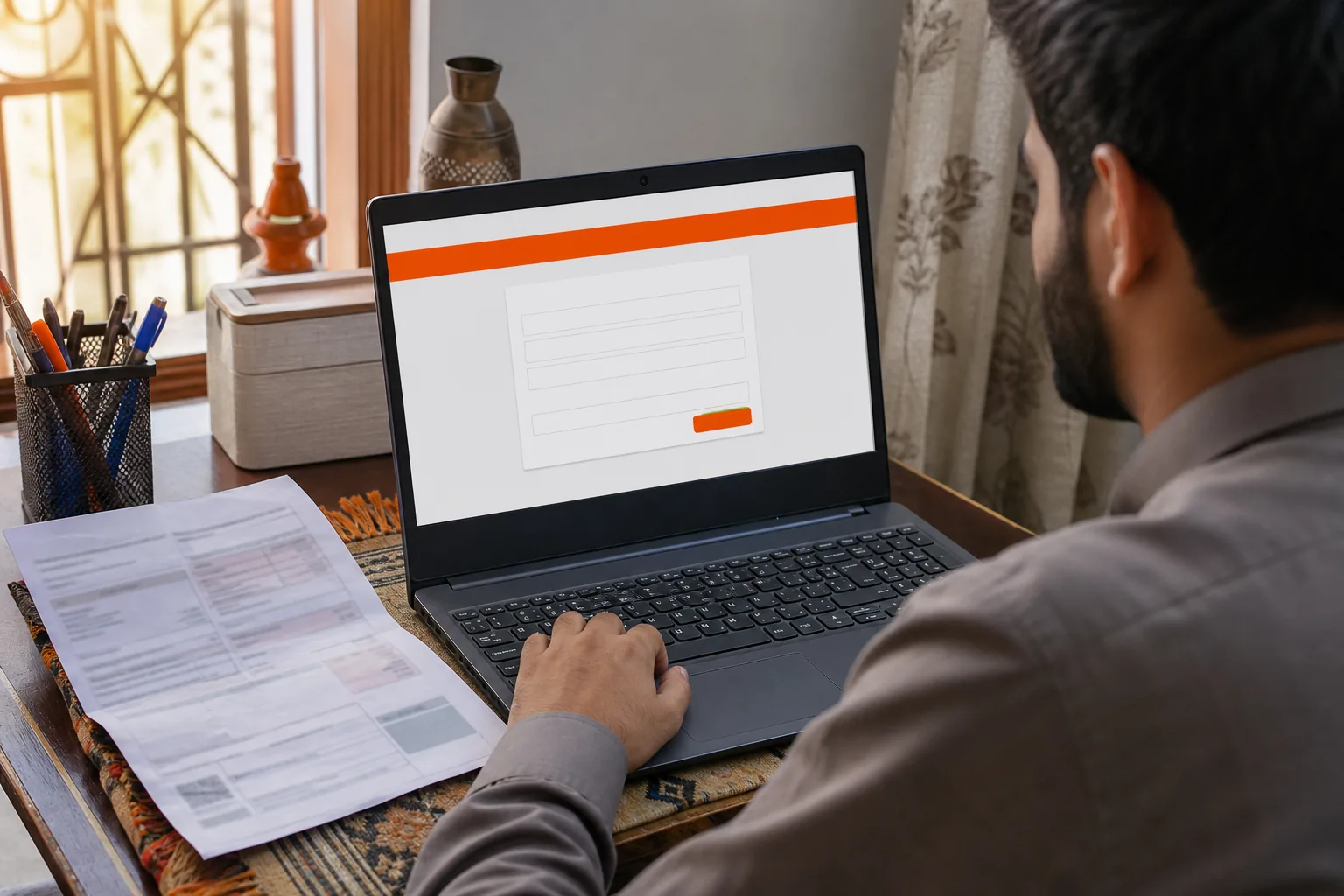
Need your SNGPL bill before the paper copy turns up? You can check the latest statement online with the 11-digit Account ID printed on an earlier bill. The SNGPL duplicate bill process is free and doesn’t require you to sign in.
We analyzed 25 comments from Reddit and YouTube about duplicate SNGPL bills and found that 28% mentioned technical problems with the portal.
Step 1: Find Your 11-Digit SNGPL Consumer Number
Start with an old SNGPL gas bill. Find the 11-digit Account ID, also called the Consumer Number or SAF number in some bill-check guides. It identifies the gas connection you want to check.
Look near the top of the bill. The label and exact position can vary, so scan the header area rather than relying on one corner. The Account ID is numeric. Enter all 11 digits, with no spaces or hyphens.
If you don’t have a recent paper bill, check a saved PDF or a clear photo of an earlier one. A family member may also have a copy. Don’t use a meter number or a different reference number unless the official page specifically asks for it.
Before moving on, compare the digits you’ve copied with the old bill. For example, if the number begins with zero, keep that zero. Leaving it out changes the ID and can lead to an error or no result.
Keep the number private. It’s useful for checking your account, but you don’t need to post it in a public comment or send it to an unknown person. Azlaan Tools also has a Sui gas bill-check page for SNGPL and SSGC if you want a starting point for finding the provider’s bill page.
Milestone: You should have the full 11-digit Account ID ready to enter.
Step 2: Open the Official Duplicate Bill Portal
Locate your 11-digit Account ID on any SNGPL bill. Open the official duplicate bill portal, enter the Account ID and select Submit or Search Bill. Use the official portal rather than a search result that only looks official.
View the retrieved statement. If you’re using a phone and can’t see the full form, turn your phone sideways or zoom out a little. Avoid tapping adverts or unrelated buttons while completing the bill check.
Azlaan Tools is free with no signup or fees. This applies to access to Azlaan Tools; any bill amounts shown are separate.
Milestone: You should be able to enter your Account ID and view the retrieved statement.
Step 3: Download, Print or Save the Duplicate Bill
Once the result loads, check that it belongs to the right connection. Review the consumer details and the bill period before saving. A bill for a different connection or period won’t help you pay the amount you owe.
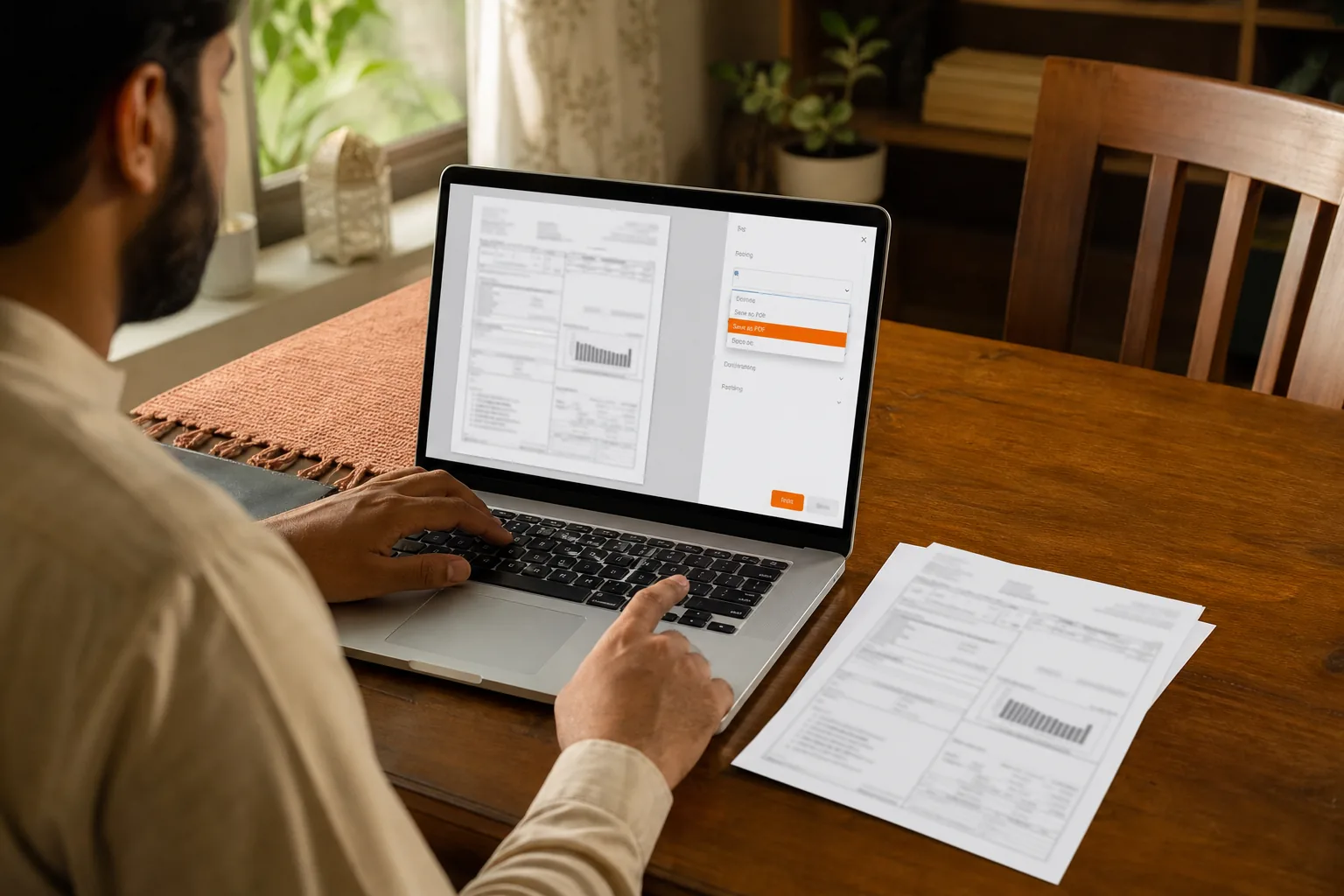
Look for a download or print control on the result page. If there isn’t a direct download button, use your browser’s print command. In the print window, choose Save as PDF instead of a physical printer. Pick a folder you can find later, such as Downloads or a folder for household bills.
Give the file a clear name, such as SNGPL-bill-Oct-2026. Use the bill month shown on the statement if it differs from the month you downloaded it. A clear name makes it easier to find the right file when you’re paying bills or checking past charges.
For a paper copy, choose your connected printer in the print window and check the preview first. Make sure the bill isn’t cut off at the edges. If you only need a digital copy, save the PDF and open it once to confirm the text is readable.
Azlaan Tools is free to use, with no signup or fees. Its bill-checking links help you reach the provider’s bill page; the bill itself is retrieved through that provider’s service. This is separate from Azlaan Tools’ browser-local file tools, which process supported files in your browser.
Milestone: You should have a readable PDF saved in a folder you can find, or a printout if you need one.
Step 4: Fix Captcha, ‘Not Formed’ and Number Errors
If the page rejects the captcha, read the new image carefully and enter the characters again. Check for letters that look alike, such as uppercase “O” and zero. If the page has a refresh control for the captcha, use it to request a clearer code.
When the result says “Not Formed”, first check the Account ID digit by digit. Make sure it has 11 digits and that you copied it from the bill’s Account ID or Consumer Number field. Don’t add a space or punctuation mark.
If the number looks right, check that you chose the SNGPL service rather than a different gas provider. Your old bill identifies the provider. SNGPL and SSGC have separate bill-checking routes, so a number from one provider won’t retrieve a bill through the other’s page.
Then try again after refreshing the page. A temporary loading issue can interrupt a request. If the site still fails, use the official SNGPL website’s customer-service options rather than giving your bill details to an unknown site.
You may see third-party bill-checking apps in an app store. If you choose an app, read its developer details and privacy information first. For a one-off check, the provider’s official page is the simpler choice. Azlaan Tools is free with no signup or fees.
Milestone: You should have corrected any digit or captcha issue, or know to retry through SNGPL’s customer-service route.
Step 5: Pay the Bill and Check Whether You Need a Printed Copy
Use the amount and due date shown on the retrieved statement to plan payment. If you need a separate usage-based estimate for future Sui gas charges, Azlaan Tools’ Sui Gas Bill Estimator can help, but the provider statement remains the amount due. Pay through a channel you already trust, such as your bank’s bill-payment service or a payment app that supports SNGPL. Check the provider name and account details on the payment screen before confirming.
The duplicate PDF gives you a record of the bill details. Keep the payment confirmation too. If your bank app shows a successful payment, save its receipt or reference number so you can check the transaction later if needed.
Many households can keep the bill as a PDF and pay through an online channel. If you’re paying in person, check with the bank or payment point about what it accepts. Some may need the printed bill or details from it. Don’t assume every payment counter follows the same process.
Keep the PDF until you can see that the payment has gone through. If you’re checking a past bill, give each file a name that includes its bill period. This helps when you compare a charge later or need to show which statement you paid.
For other household utility checks, Azlaan Tools also has an online electricity bill-check tool. Its bill-checking pages are free with no signup or fees. That access doesn’t cover the bill amount itself, and it doesn’t include any cost for solar equipment or other financial amounts you may calculate with separate tools.
Milestone: You should know how you’ll pay and where you’ll keep the bill and payment receipt.
Frequently Asked Questions
How can I get my SNGPL duplicate bill online?
Use the provider’s official bill-checking page and enter the 11-digit Account ID from an earlier gas bill. Solve the captcha and submit the form. When the bill appears, use the page’s download option or your browser’s print window to save it as a PDF. The enquiry is free and doesn’t require you to sign in.
Where can I find my SNGPL 11-digit consumer number?
You can find the 11-digit Account ID on an old SNGPL bill, usually in the top section. It may also be labelled Consumer Number or SAF number. Copy all 11 digits, including any zero at the start, and leave out spaces or hyphens when entering it online.
Why does my SNGPL bill say “Not Formed”?
Check that you entered the right 11-digit Account ID and selected SNGPL. A wrong digit or a number from another provider can prevent the form from finding the bill. If the details look right, refresh the page and try again. You can also use SNGPL’s customer-service options if the error continues.
Can I pay my SNGPL bill with a duplicate PDF?
You can use the bill details to make a payment through a bank or payment app that supports SNGPL. Check the provider name and account information before confirming. If you’re paying at a physical counter, ask whether it needs a printed copy or can use the details from your PDF.
Do I need to print my duplicate gas bill?
Not always. If your bank or payment app accepts the bill details, you can keep the PDF and pay online. A printed copy may help at a physical payment point, but acceptance can differ by channel. Save the payment confirmation as well, so you have a record after paying.
Conclusion
Find the 11-digit Account ID on an earlier bill, then use SNGPL’s official bill-checking page to view and save the latest statement. Keep the PDF and payment receipt together. Azlaan Tools is free, with no signup or fees. For your next check, open its bill links and follow through to the provider’s official page.